

Yes, I’m deliberately saying “unmanaged” rather than “BYOD.” You might wonder, what’s the difference? In practice, I’ve found that BYOD tends to spark a different kind of conversation.
Paraphrasing slightly: even if your organisation doesn’t officially support, allow, or encourage BYOD there’s a good chance you still have use cases where users, execs, contractors, or third parties etc. need access to Microsoft 365 resources from devices that aren’t company managed.
Whether or not you call that BYOD is beside the point – the challenge is real.
Why Focus on Desktop-Class Devices?
For this post, I’m narrowing the scope. Let’s set aside iOS and Android (mobiles deserve their own discussion) and focus instead on unmanaged desktop-class endpoints. Think Windows, macOS, and yes, even Linux.
These devices won’t be enrolled in Intune or joined to your domain, but access is still being requested from them, and you need to control how that happens.
What Are Our Options?
If we’ve accepted that some level of access from unmanaged endpoints are required, the next step is understanding what Microsoft-native controls or features are available to help govern that access.
Here are four core options:
- App Enforced Restrictions
- Mobile Application Management (MAM) on Windows
- Conditional Access App Control (via Defender for Cloud Apps)
- Windows 365 or Azure Virtual Desktop (AVD)
Each of these have strengths, limitations, and ideal scenarios – you may find you need a combination!
App Enforced Restrictions
App Enforced Restrictions are a lightweight yet effective way to control user actions when accessing Exchange Online, SharePoint Online, and OneDrive from unmanaged devices.
Instead of blocking access entirely, this method allows you to permit access via a web browser only, then layer on session-based restrictions to limit what users can do within that session.
App Enforced Restrictions are enforced through Entra Conditional Access policies. However, they also require administrative configurations within SharePoint Online and Exchange Online to achieve the desired functionality.
Some examples of what you can enforce are:
- Browser-only editing: Restrict access so that users can only view or edit documents within the browser – this blocks the use of Microsoft 365 desktop apps or any locally installed applications from opening or editing company data.
- Download, sync, and print restrictions: Stop users from downloading files, syncing libraries, or printing content. Files, including email attachments, remain contained within the browser session, preventing file data exfiltration. Use of M365 desktop apps and the OneDrive client are blocked.
- Read-only access: Prevent users from editing files in the browser entirely, making documents view-only during the session.
- Hide Outlook attachments: Fully remove visibility of attachments in Outlook on the web to eliminate even the option to preview or open them.
- Idle session timeout: Automatically sign users out after a defined period of inactivity in the browser.
Considerations
- Viewing and editing documents within a browser session (Office Online) will still allow users to copy & paste (exfiltrate) content like text and pictures.
- There is no dedicated auditing or deep session analytics, however:
- User actions are reflected indirectly in the Microsoft 365 Unified Audit Log, primarily through activities in SharePoint Online, OneDrive, or Exchange Online.
- User sessions that are subject to App Enforced Restrictions can be identified within the Entra Sign-in logs.
- Outlook on the Web (OWA) mailbox policies will also apply to the new Outlook for Windows app e.g. hiding attachments.
- Conditional Access capabilities are included with Entra ID P1, so no additional licences like Microsoft Intune or any E5 SKUs are required.
- The controls are operating system agnostic; you just need to be using a supported browser.
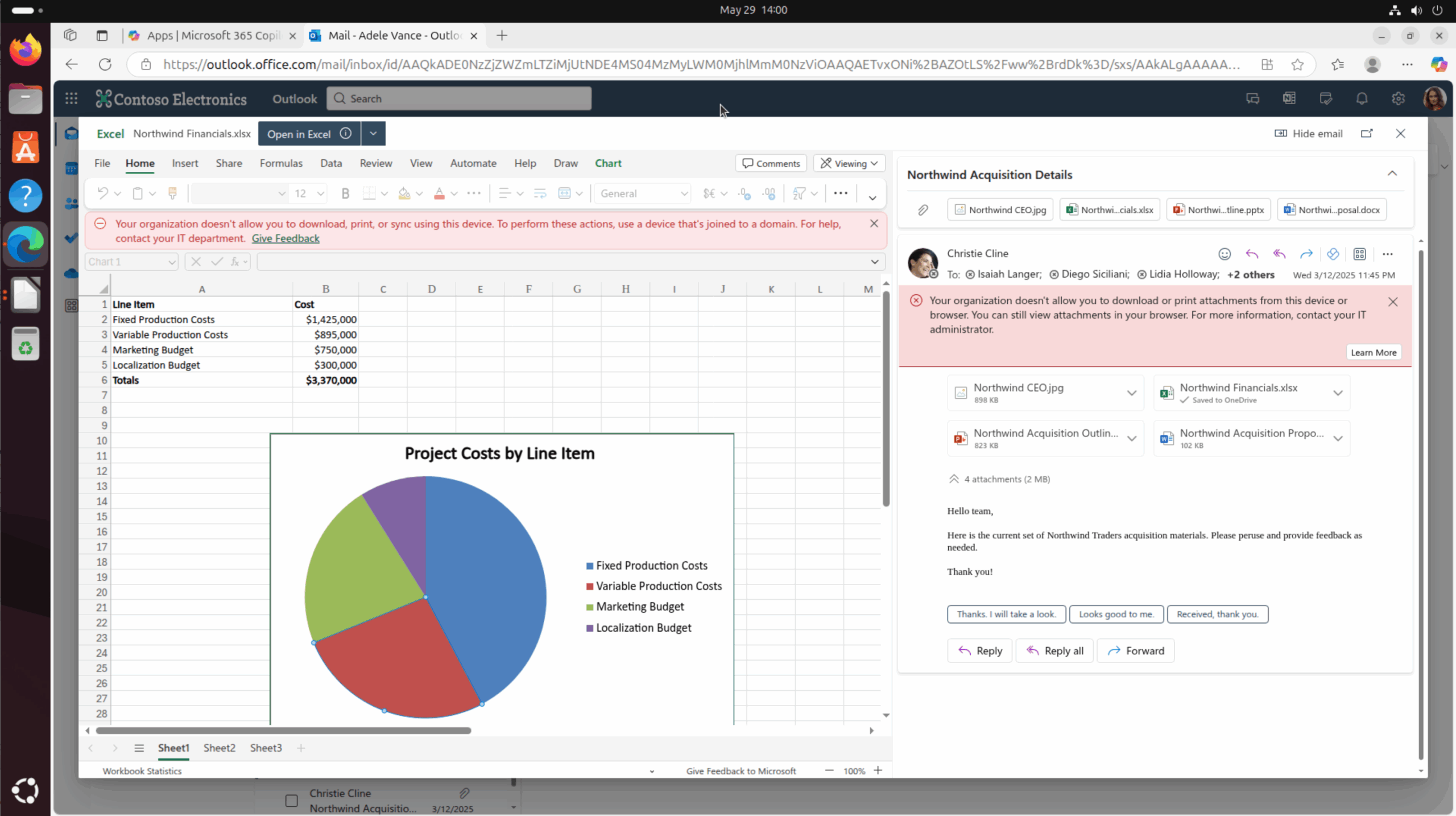
Here we have an example of using Ubuntu to access OWA and App Enforced Restrictions are controlling what can be done with the email attachments.
Mobile Application Management (MAM) on Windows
MAM on Windows brings Intune App Protection Policy (APP) capabilities, previously associated mostly with mobiles, into the desktop space.
Currently only supported by Microsoft Edge, this feature enables you to enforce granular data protection policies at the application level without managing or enrolling the device which continues to be fully “unmanaged”.
The magic happens when the user accesses a company resource in the browser – if they are already using Microsoft Edge, they are directed to create a new work profile and register the app, or if using another browser like Google Chrome they are prompted to switch over to Edge to get access.
Once a work profile is created and signed in, the protection controls available to us are:
- File Uploads: restrict file data ingress – allow or prevent users from attaching documents to company emails or uploading files to their OneDrive from the file system of the unmanaged device.
- File Downloads: restrict file data egress – allow or prevent file downloads from company locations such as email, OneDrive or SharePoint to the file system of the unmanaged device.
- Cut, Copy, and Paste: control data ingress/egress – allow or block cut, copy and paste functionality within the web content area of the work profile. Unfortunately, this control isn’t very granular. It’s all or nothing – which means when you disable it, even basic in-document copy/paste is blocked.
- Printing: allow or block the ability to print company documents or emails. This will also control “Print to PDF” functionality.
- Health Checks: use signals from the Windows Security Centre on unmanaged devices to prevent access to company resources if the device is reporting as unhealthy.
You can also deploy app configuration policies to customise the Edge work profile. This lets you set things like the home page, new tab behaviour, required extensions, and default search engine – creating a curated, seamless work experience.
Considerations
- MAM for Edge is currently Windows-only. The same functionality isn’t supported on macOS or Linux.
- The work profile setup screen can be very confusing. It’s easy to pick the wrong option, so clear user comms are essential – you’ll also need to block personal device enrolment to avoid the consequences.
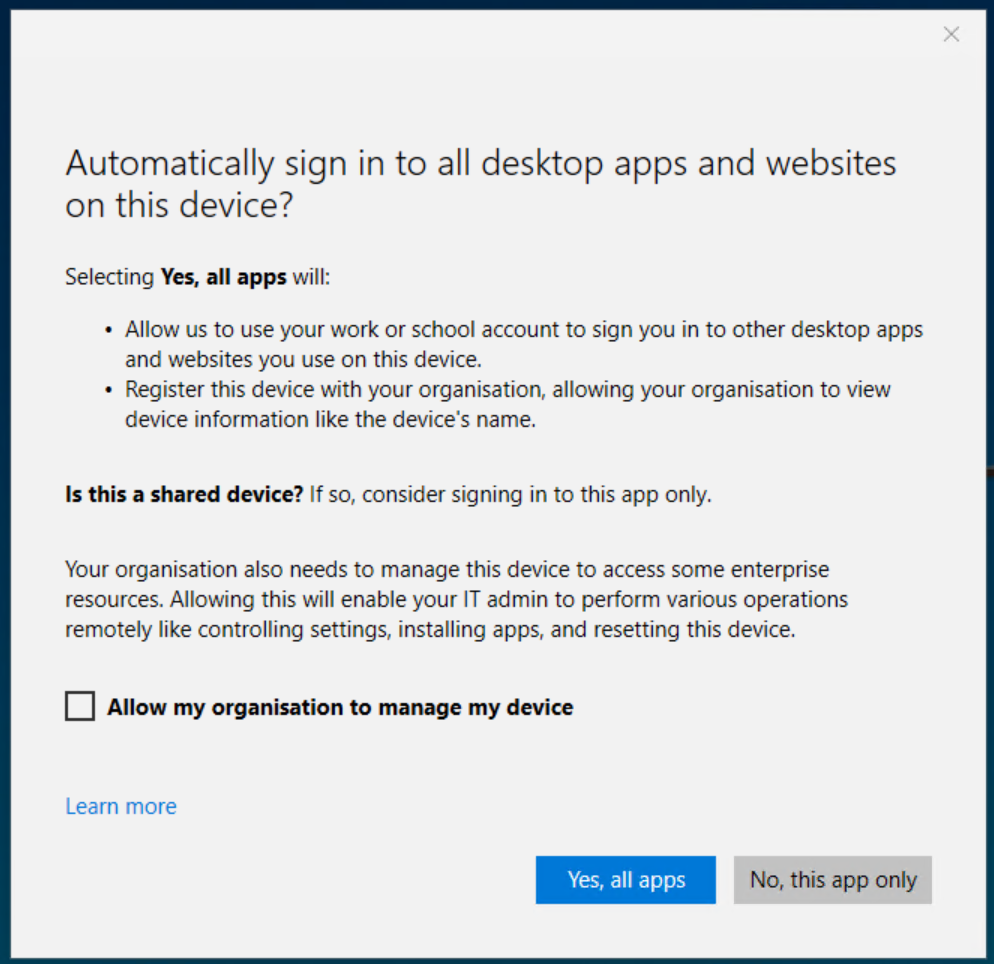
You need to answer “Yes, all apps” for MAM to work, and also ensure the box is unchecked. It’s a horrible screen and this is the latest Windows 11 24H2 incarnation – users and admins both hate it!
- It even works with Microsoft Edge on Windows 11 Home edition!
- We’re not just limited to controlling access to M365 resources – any on-premises web apps published via Entra App Proxy can also require access via MAM controlled Edge.
- Conditional Access capabilities are included with Entra ID P1, but we’ll now also need a Microsoft Intune licence to apply the MAM policies (APP).
- Only a single MAM controlled work profile is supported – adding additional ones will cause strange behaviour.
Conditional Access App Control
Conditional Access App Control uses Microsoft Defender for Cloud Apps (still often referred to as MCAS) to provide real-time, proxy-based session control over access to Microsoft 365 and connected SaaS applications.
When a user signs in from an unmanaged device, their session is routed through Microsoft’s reverse proxy, allowing you to monitor activity, enforce policies and respond in real-time. This method offers the deepest level of control and visibility, making it particularly useful for high-risk scenarios or when interacting with sensitive data.
Examples of the protection controls available to us are:
- Similar functionality as described with App Enforced Restrictions, but with very granular control, improved targeting and extensive monitoring and auditing capabilities. Examples include:
- Allow access to Teams but don’t allow the sending of any messages.
- Control Cut, Copy, and Paste for specific apps – allow within Outlook but prevent within Teams.
- Allow file downloads but automatically block any bulk file downloads.
- Real-time Alerts: get notified about suspicious activities.
Additionally, with Microsoft Purview integration we can enhance things further:
- Content Aware Access Policies: use Purview sensitivity labels to determine file access, for example block documents labelled “highly confidential” from being downloaded whilst allowing others.
- Inline DLP: inspect file contents during uploads or downloads and enforce Microsoft Purview policies in real time – such as blocking the upload of files containing personally identifiable information (PII).
- Watermarking: apply dynamic watermarks that overlay a user’s email address and the current date/time on open documents to discourage screenshots or photographs and help make tracing easier in the case of data leakage.
Considerations
- May negatively impact user experience and or performance due to the in-session proxy functionality, but not for much longer – check out the new “in-browser protection” feature below!
- This is enterprise class functionality which requires M365 E5 licencing to enable all product features, or Office 365 E5 at a minimum for a smaller subset of features. Please see here for a full feature comparison.
- Lots of power and flexibility could add tiers of complexity if not well managed and maintained.
Preview Feature – In-Browser Protection
In-browser protection enables real-time enforcement of session policies like the blocking or monitoring of file downloads, uploads, copy/cut/paste, and printing all natively from within Microsoft Edge – no .mcas.ms suffix on the address bar, reverse proxying or Edge MAM required!
Supported on Edge for macOS and Windows via work profile – learn more here!
Windows 365 or Azure Virtual Desktop
While the other options in this post focus on limiting or managing what users can do on unmanaged devices, there’s another route entirely and that is to not let sensitive data touch an unmanaged device at all.
With Windows 365 Cloud PCs or Azure Virtual Desktop, you provide users with access to a fully managed Windows environment hosted in Azure. Users interact with corporate resources through a remote desktop session that you fully control and manage.
Examples of the controls we have in this scenario include:
- Cut, Copy, and Paste: allow full functionality in the remote session, but prevent data exchange between the host and unmanaged client device.
- Redirection: prevent capabilities like printing or drive mapping from the remote session to the client.
- Screen Capture Protection: remote screens show as a black empty window on any screen shots or if shared via collaboration tools like Teams on the unmanaged device.
- Watermarking: Working alongside screen capture protection you can choose to overlay a QR code that represents the session or device ID to help discourage taking photographs of the screen.
Considerations
- Very compelling if you need access to desktop apps or functionality not available with browser-based access.
- Licensing costs, Windows 365 is per-user subscription, while AVD is more flexible but billed based on consumption. These would be in addition to any productivity or management licences for Entra, Intune or Office 365 etc.
- You can apply your standard endpoint security, compliance, and DLP policies to the remote session as if it were a company-owned laptop.
- Not all control features can apply in all scenarios or use cases – for example, with screen capture protection enabled you cannot connect via web browser but must use the Windows App.
Unmanaged Device Access – Choose What Fits
Whether you call it BYOD or just acknowledge that users, partners, and execs will access Microsoft 365 from unmanaged devices, the need to balance flexibility and control is a reality.
Fortunately, Microsoft offer several approaches each suited to different use cases, risk levels, and organisational requirements.
- App Enforced Restrictions: quick and simple browser-based access with limited functionality.
- Windows MAM: persistent, identity-aware controls at the app level, without managing the device.
- Conditional Access App Control: powerful, session-aware enforcement based on activity, risk, and content.
- Windows 365 or AVD: a fully managed remote desktop experience that keeps data off the device entirely.
As is quite often the case there is no one size fits all. In many environments, it will be a combination of these approaches that will provide the best solution.